shep, but online

random thoughts, photos, and links

Posted in: Posts

Recent Features Added to Sports on TV

I’ve been busy adding a lot of new features and bug fixes to Sports on TV recently. I thought I’d list out some of the biggest changes.

  • Soccer matches now show starting lineups (both full XIs, with position) when TheSportsDB has them on file. Motorsport and other events with no “Team A vs Team B” concept now show a real results table (finishing position, name, time) instead of just a bare title — previously these had no way to show an actual outcome at all. Player profiles now show a career timeline of past teams too.

Keep reading →

An Unofficial Taskmaster UK Guide

If you love Taskmaster, you LOVE Taskmaster. You probably can’t stop talking about it or telling people to watch it. One of the great things about Taskmaster is that, if you’re in the US, you can watch every episode for free on Youtube, so it makes it easier to recommend, but harder to share. Mixed within the 21 seasons (series) of the show are episodes from other versions of the show, compilations, clips, and interviews. While all the content is great, it makes it difficult to know where to start. That’s why I created this handy site: tm.dumbfun.lol.

The site makes it easy to browse each of the 21 seasons of the UK version of the show and go directly to each episode on Youtube. You can also filter by contestant if there is a specific comedian you’d like to start your journey with. I also added a toggle to show the winners for once you’ve watched each season and want to look back at who won each episode or season.

Scratching an Itch with AI

When I’m working or listening to podcasts I still like to have something playing on a screen somewhere, whether it be a TV or an iPad. Sometimes it’s reruns of Seinfeld, Saved by the Bell, or other shows and movies and sometimes it’s sports. It used to be fairly easy, at least on the Apple TV, to see what sports were currently airing. Since they added F1 to the Apple TV app, they no longer give Sports its own tab. You can still get to Sports, it’s just slower with more clicks. Also, the interface to browse the current sports wasn’t the best either. 

I’ve been searching for a site that would display the sports airing that day since Apple made the changes to the Apple TV app. Most of the options I found were either full of ads, looked bad, and had stale data. Enter AI. 

Keep reading →

Tailscale and P-hole Conditional Forwarding

If you use Pi-hole to block ads on your network and don’t use it as a DHCP server,  you may be using their Conditional Forwarding setting to resolve the names of the devices on your local network. This directs Pi-hole to look up the decive name using your router’s DHCP server. This works great for devices on your normal network, but what if those devices are also connected to Tailscale? Well, the answer is simple, add the following rule and the devices connected to Tailscale will start resolving their Tailscale names in Pi-hole instead of just their IP addresses. 

true,100.64.0.0/10,100.100.100.100

Quality Control

I still remember when I bought Jurassic 5’s album Quality Control. I had never heard of Jurassic 5 before, but it was the year 2000 and one of the things you did in the 90s and 2000s is look at the weekly ads to see what new music releases were coming out that week. This was prime CD era when Target and Best Buy dedicated aisles upon aisles of their store to physical media. I remember looking through Best Buy’s ad one Sunday to see what new music was coming out that Tuesday (yes, friends, new music used to come out on Tuesdays). In the ad that Sunday, for only $6.99, was Quality Control.

Quality Control album artwork from the group Jurassic 5

Keep reading →

M5 MacBook Air

I recently purchased an M5 MacBook Air. I was previously using a 2015 MacBook Pro that was running Linux Mint, which I called my Mintbook. The battery on the 11 year old laptop was pretty horrible but performance in Mint was pretty good for all the things I used it for, such as web browsing, Discord, and home lab stuff. That being said, I knew it was getting time to upgrade and Apple just announced the new M5 MacBook Airs so I decided to give them a serious look. 

Keep reading →

Coax for Retro TV

I recently wrote about how I use Channels to recreate a classic Cable experience. While I have been happy with Channels, I’m always looking out for new and fun ideas. That’s how I discovered COAX

COAX is a lot like Channels that allows you to create a guide and channels off your content, it is a lot less full featured. It works off your Plex library, instead of its own library. That means that you have to make sure all your content has proper metadata for Plex, which I actually find to be less forgiving than Channels with filenames. You also don’t really have control over how many channels are in your guide (it has three options for automatically generating the channels based on preconfigured presets), but it has more of that retro feel than Channels has, including adding static when flipping channels. It also lacks any kind of syncing of the setup, so you have to configure the settings on each device you want to run it on. I do believe iCloud syncing is on the roadmap, so that will be nice when it’s implemented. Watch the video below of a quick demo using some of my content. 

My Linux Experience So Far

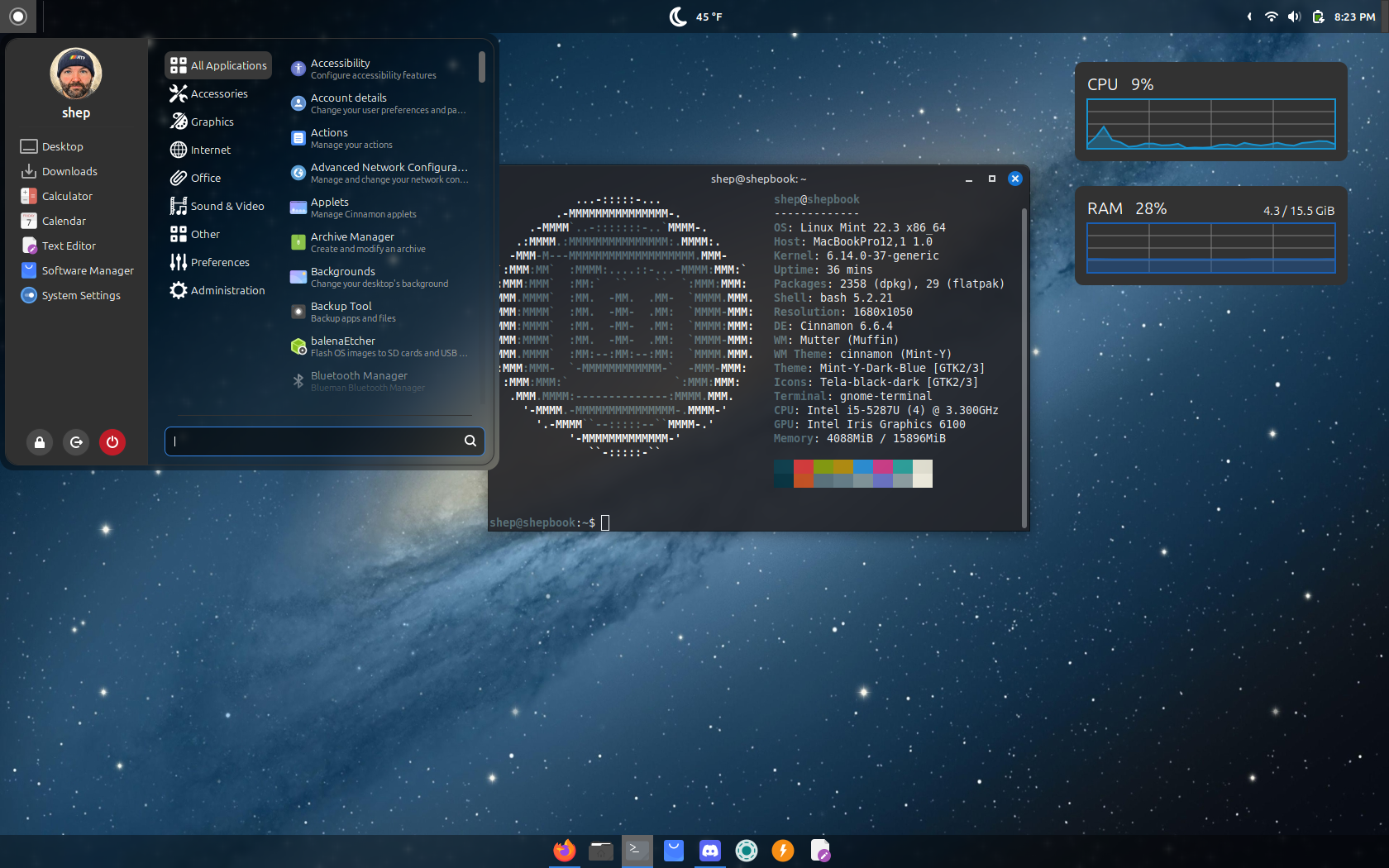
Auto-generated description: A Linux desktop environment is displayed with a system information terminal showing details about the Pop!_OS distribution, alongside a menu of applications and system performance widgets for CPU and RAM usage.

I have a 2015 MacBook Pro that still runs just fine but is no longer supported by Apple. It has 16 GB of RAM and a core I5 Intel processor. Since it was no longer getting updates from Apple, and the most recent version of macOS it did support was starting to get sluggish, I decided to repurpose the machine as a Linux machine. About 2 years ago, I installed Linux Mint and I was blown away by how it rejuvenated an old machine. Since then, I have experimented with ZorinOS and Fedora KDE Plasma. I won’t go into technical details, just some quick thoughts on each distro that I tried. 

Keep reading →

My Network

I recently upgraded my network thanks to a Black Friday sale at UniFi and I picked up a Dream Router 7.  Previously, I was using a TP-Link Deco, which was fine, but I really  wanted more control over my network, despite not knowing much about  networking. 

Setting up the Dream Router 7 was pretty straight  forward. In fact, if you don’t want to get too advanced, it pretty much  works right out of the box with a quick set up process using their app.  However, I knew I’d want more than an out-of-the-box experience. I knew  that I would want to have separate networks for my main devices internet  of things devices, such as humidifiers, light bulbs, cameras, etc.  Before I even received the router, I did a lot of research on how it  needed to be set up. The biggest contributor was this excellent video from Ethernet Blueprint. It really did walk me through everything I needed (and didn’t) with setting up my new network. 

My  network topology is fairly simple. I have the cable modem running to  the Dream Router. Also plugged into the Dream Router is an unmanaged  switch, which has a mini PC and a Mac Mini plugged into it, a Raspberry  Pi running Pi Hole and a Hue Home Bridge. The process took about an hour to create the  networks and update all my devices to use the new wifi SSIDs. It wasn’t  all smooth sailing though. I could not access any web site on my Mac  Mini or my mini PC. After a bit of troubleshooting, and a good night’s sleep, I woke up feeling refreshed with the answer coming to me out of  nowhere. My Pi Hole. 

One of the last things I did was set up Pi  Hole to block ads on my network. I had Pi Hole running previously, but  while I was upgrading my network, I decided to upgrade the Pi Hole to  Debian Trixie as well. So what was the problem here? Well, one of the  services I also have running on my devices is Tailscale, which is a VPN  that allows your devices to appear on the same network and talk to each  other even when they aren’t actually on the same network. I previously  set up Tailscale to use the Raspberry Pi and Pi Hole as the DNS server using this tutorial. This allowed me to block ads on my phone, even when I’m on another  network or on cellular. The problem was, Tailscale was still configured  to use the Pi Hole’s old IP address for the DNS server and it no longer  existed. The fix was simple, I just needed to use Tailscales  nameservers until I had the Pi Hole back up and running, then I could  update Tailscale to use the new IP address.

Once the Pi Hole was  set up, I needed to update the DNS on my network on the Dream Router to  point to the Pi Hole as well. That was as simple as unchecking Auto for  DNS and then typing in the IP of the Pi Hole.
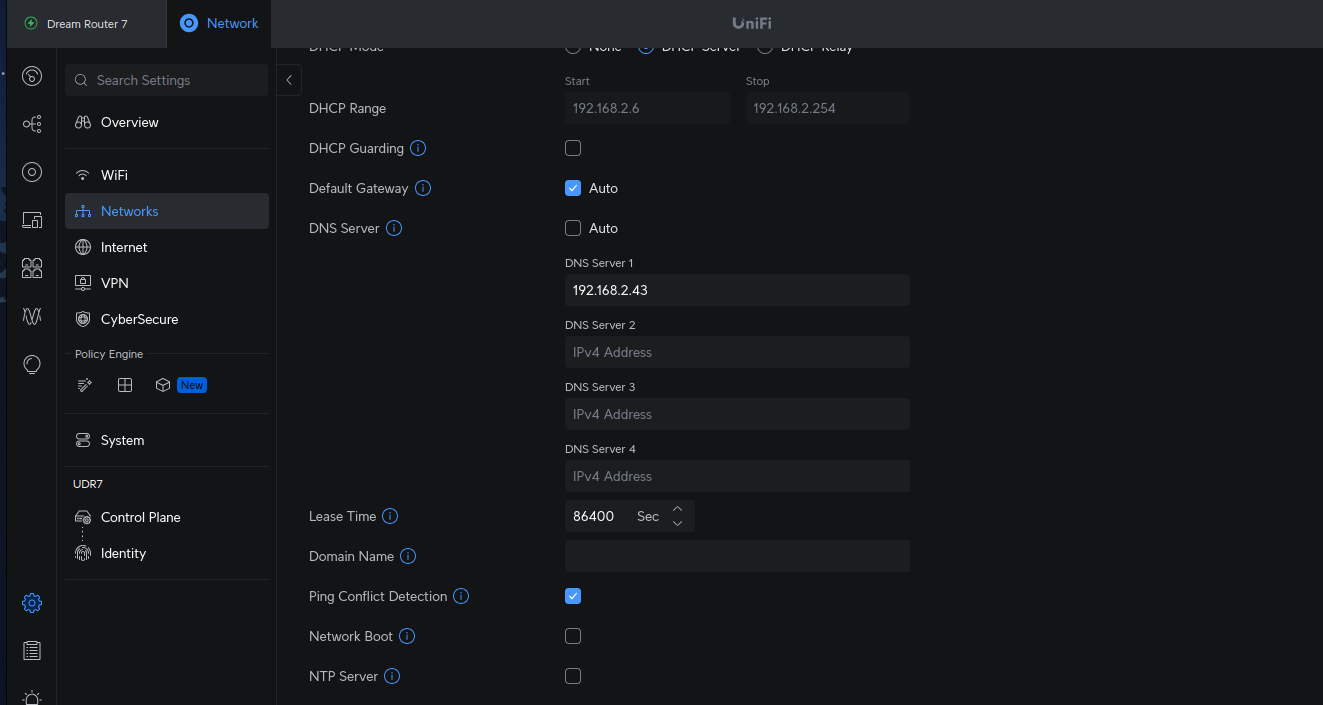
screen shot of the dream router settings

Once  that was done, my devices started using the Pi Hole for the DNS server  and ads were being blocked on my network once again. However, there was  still one more annoyance. My Pi Hole is not my DHCP server. For now, I’m  keeping that functionality on the Dream Router. What that means is all  my devices in the Pi Hole interface would just show the IP addresses of  the devices, instead of their friendly names. Luckily, with Conditional  Formatting in the Pi Hole settings, you can have the Pi Hole talk to the  DHCP server on the Dream Router to get the device names. 
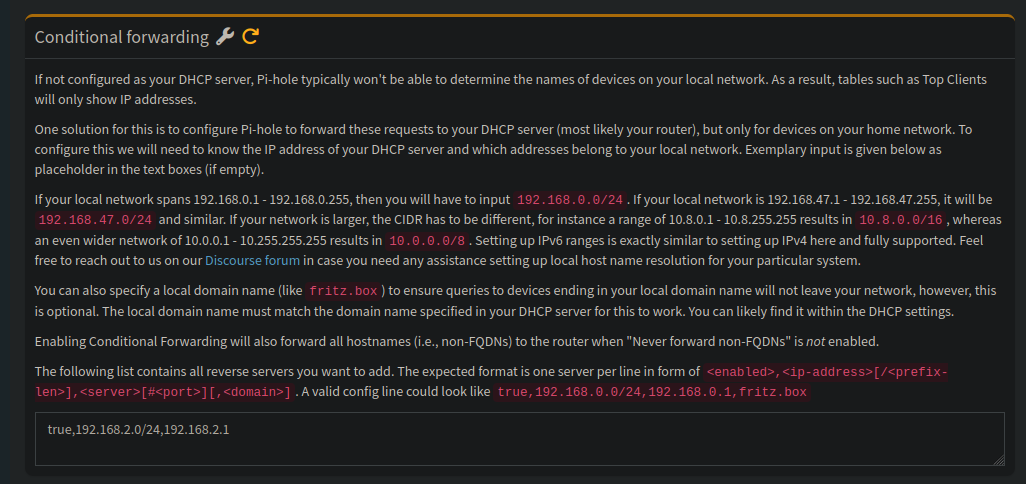
conditional forwarding settings on pi hole configuration

Once that was set, all my devices started showing up in Pi Hole as their device name instead of the IP address. 

Now  everything is running smoothly. I’m getting fast wifi 7 speeds on my  iPhone, wifi 6 and 5 on other devices. My IoT devices are now on their  own dedicated network, and I have much more insight as to what is  actually going on with my network traffic. 

Things I like This Week: Week 3

Here are the things I liked this week.